IF THESE INSTRUCTIONS DON'T MATCH WHAT YOU SEE ON YOUR SCREEN...
You may be using our older Legacy website. To access those instructions, click here.
The Filings page is where you upload the document(s) you intend to send to the court.
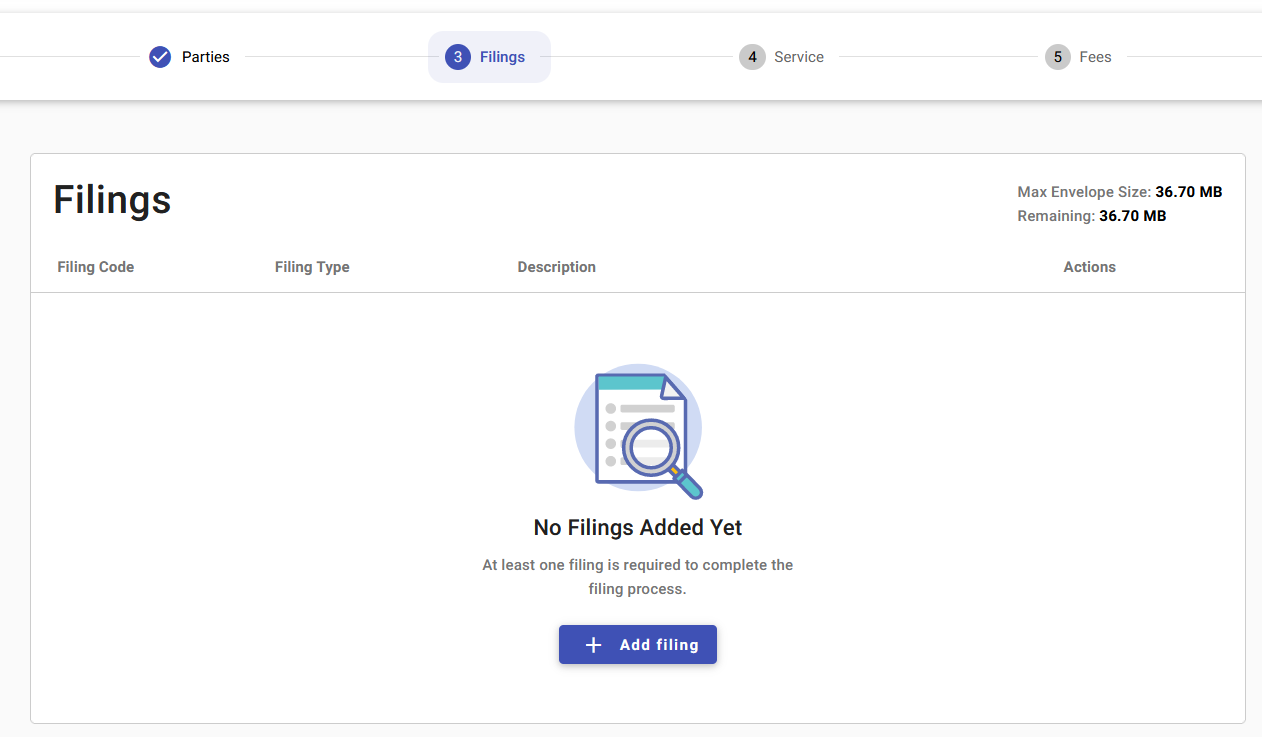
To begin, click the blue +Add filing button.
Select the Filing Type by filling in the bubble next to your selection. Scroll down the screen.

-
EFile Only (EFO): your filing is only being e-filed to the court.
-
EFile And Serve (EFS): your filing will be e-filed to the court as well as being served electronically to the emails on the service contact list (emails will be viewable in the Service section).
-
Service Only (SO): your filing will only be electronically served to those on the service contact email list.
When starting new cases, some courts will only offer the option of eFile only. This option is configured by each court.
For more information on the Filing Types, please refer to the help article below.
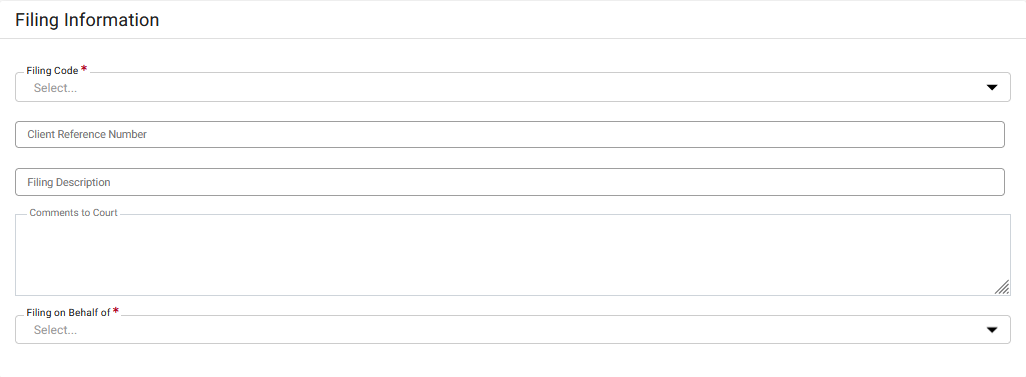
Select the required filing code. Enter in the Client Reference Number, Filing Description and Comments to Court. If the fields are not marked with a red asterisk (*), then they are not required and nothing needs to be entered.
-------------------------------------------------------------------------------------------------------------------
Frequently Asked Questions:
What is a Filing code?
The filing code is the specific type of filing that you are sending to the court. (Example: complaint, motion, memorandum, affidavit, etc.) If you have multiple documents to file, you should add the main document first, which is typically a complaint, answer, motion, etc.
Choose the filing code that most closely matches the document you want to upload. If you are submitting a form, the name or title of the form may help you choose the right filing code. TIP: If you start typing a word into the field (for example, motion), the list will show you all the filing code options that include that word.
Click here for more details about the filing code.
Please note: If you need help selecting filing codes, please contact the court that you are sending your filings to for assistance.
What is a Filing Description?
The Filing Description field allows you to describe the lead document that you are filing.
What is the Client Reference Number?
The Client Reference Number is to help attorneys associate filings with internal firm records. For example, you can enter your client's name or account number, or the purpose of the filing to help you reconcile your filings with your firm records. Client Reference Number is often used to help you distinguish between your e-filings.
Note: Client Reference Number does not need to be a number.
What should I put in the Comments to the Court section?
This section can be used to add any comments you need to make to the court reviewer directly. The comments should be information that is not already included in your documents. This section has no character limit, so filers should have plenty of space to type whatever they need to.
Continue scrolling down the screen to the Upload Documents area. Click Select files to upload your PDF document.
What do I select in "Filing on Behalf of"?
The
Filing on Behalf of dropdown, if required, is used to select your party name, or the party name that you are representing in the case. This dropdown menu loads a list of party names from the
Parties page of your draft.

Continue scrolling down the screen to the Upload Documents area. Click Select files to upload your PDF document.
What is a Courtesy Copy?
Courtesy Copies are an extra email notifying the entered email address that something has been accepted by the court. The user submitting automatically gets an 'Accepted' notification email. These are added to a submission by typing in an email address in the designated field. If multiple courtesy copies are needed, separate each email with a comma. Courtesy Copies are NOT formal service to other parties and do not provide proper notice. They are typically sent out after a filing is accepted by the court.
-
NOTE: Courtesy Copies are an option configured by each state's court system. States may change this option at any moment.
What is a Preliminary Copy?
Preliminary Copies are an extra email notifying the entered email address that a filing has been sent to the court. The user submitting automatically gets an 'Accepted' notification email. These are added to a submission by typing in an email address in the designated field. If multiple courtesy copies are needed, separate each email with a comma. Preliminary Copies are NOT formal service to other parties and do not provide proper notice. They are typically sent out before a filing is accepted by the court.
-
NOTE: Preliminary Copies are an option configured by each state's court system. States may change this option at any moment.
What is a Lead Document?
The Lead Document is the main document you are adding to a filing, and it is required. Here you upload a document from your computer. The document must be saved as a PDF file to upload successfully. The Lead Document is what typically gets filed stamped by the court.
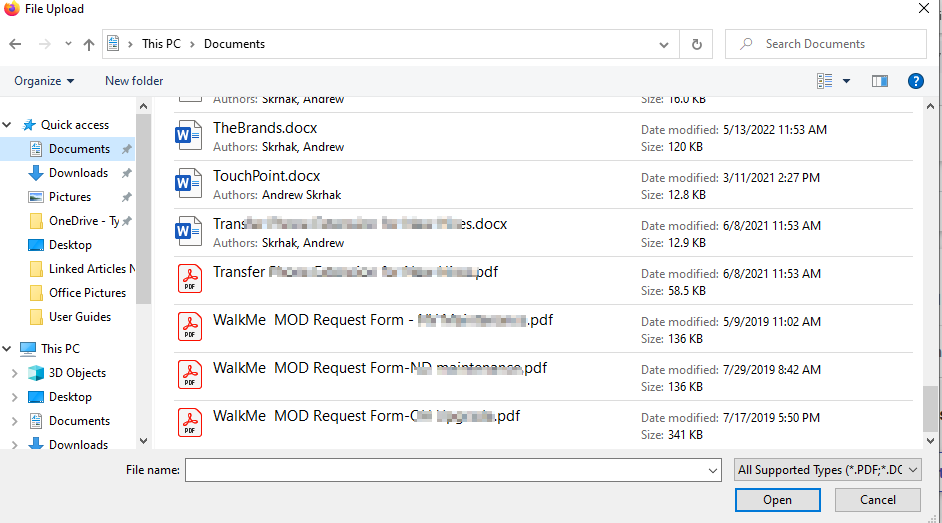
To upload a Lead Document, click the Select File button to open a dialogue box on the device you are using to access our website. Navigate to the document you wish to upload, then click the "Open" button to upload it.
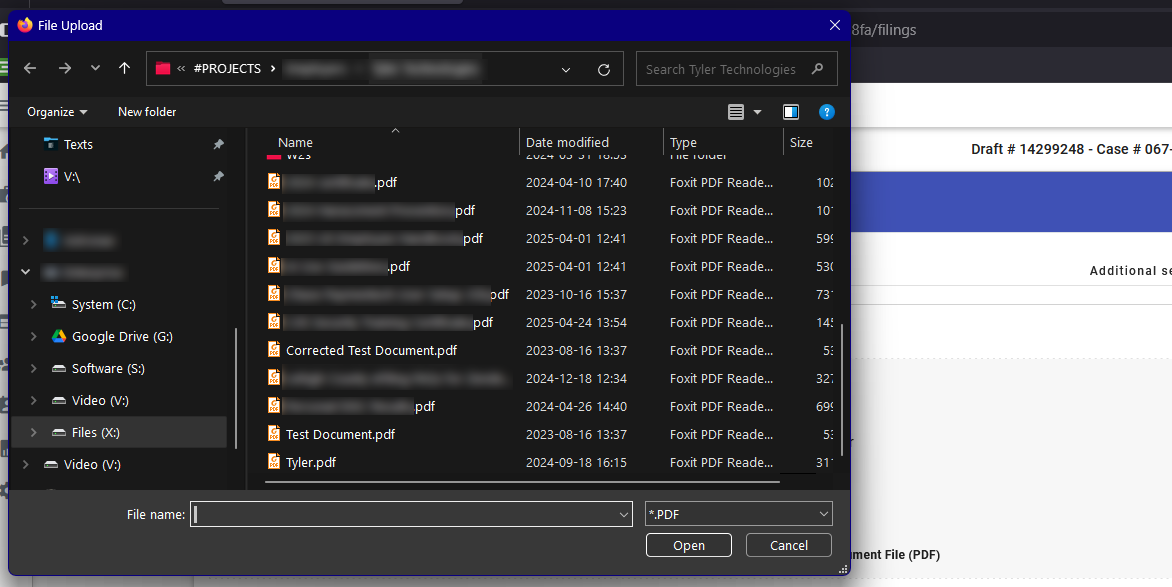
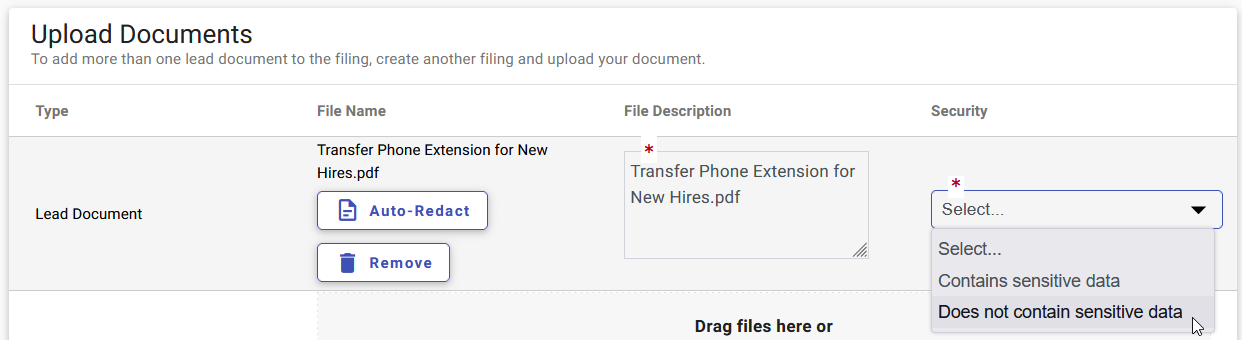
The file should then appear in the Lead Document section. Select a Security option to continue.

Do not make each page of a document into its own PDF. A document you file should be one PDF. If you are submitting multiple documents (for example, a complaint and an application for a fee waiver), you should upload the documents separately.
- If you cannot select the file and click the "Open" button on the dialogue box to upload the file, simply drag the file to the Lead Document area and drop it there.
- If you have stored your documents in your device's Downloads folder, please consult with the user guides/instructions for the device you are using to view your downloaded files.
What are Attachments?
Some courts allow you to upload more than one document as a single filing using a lead document and attachment documents. For more information about lead and attachment documents,
read this article.
Please Note: If there is no option to add an attachment, this is because the court you are filing into does not allow attachments. You will have to add your attachment as another filing.
Locate the file, click on the file and then click Open.
What is a File Description?
The Document/File Description field allows you to describe the specific document that you are filing.
What is Security?
If this field is visible, you can select a type of security to, for example, tell the court if the document contains sensitive or confidential information. If this field is required, you will need to select one of the options in the dropdown menu.
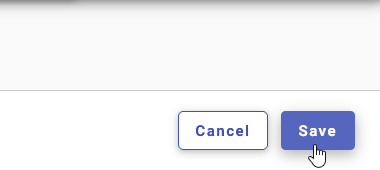
Scroll down to click Save at the lower right hand corner.
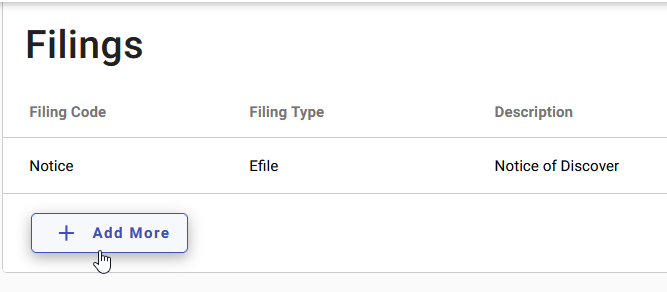
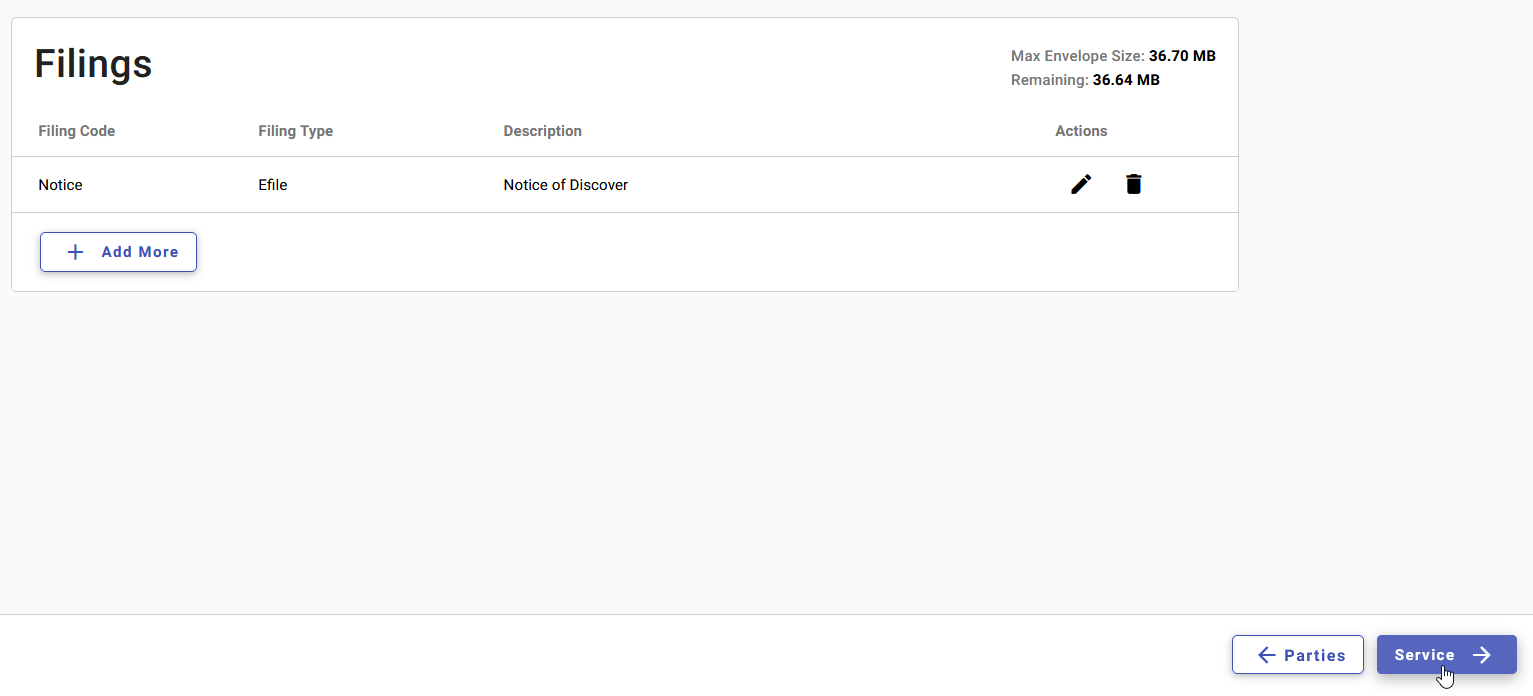
If more documents are needed to be added, click the +Add More button on the left. Repeat the steps above.
To continue to the next section, click Service on the lower right hand corner.
What are Additional Services & Fees?
Additional Services and Fees are extra services that a filer might need to add to their filing, like Constable or Certified Mail Service or certain specific document fees. You can find the Additional Services and Fees tab at the top of the Edit Filing Details window in the tab on the right. (See the yellow highlighted area in the image below.)
For more information on adding these additional services, please view the help article below.
If You Are Unable to Proceed, or Receive a "Filings Needs Attention" Message When Clicking the Service Button...
